Every member of an organization has a role. It defines what the person can do in HubNext in general. Access to a specific project is configured separately — see Project access.
What exactly each role can do can be configured by the organization: the head in People → Rights, the superadministrator in Administration. The description below shows the defaults; see Rights and security for details.
Where your role comes from
An administrator assigns your role when adding you to the organization. If you lack permissions — for example, you need to create a project — contact your manager or administrator.
What each role can do
User
- Sees the organization's public projects and the projects they've been granted access to.
- Creates tasks, comments, changes status and assignee, keeps checklists and logs time.
- Reads and edits the project's doc pages, keeps data tables, links tasks as duplicates.
- Sorts their own tasks into personal stacks (Tasks → Dashboard → Stacks).
- Keeps personal Todos and Favorites, sets up their profile and notifications.
Manager
Everything a user can do, plus:
- Creates projects. Only users with elevated permissions — managers and administrators — can create projects.
- Edits public projects: subprojects and project settings, imports tasks, moves them between projects, manages auto-close.
- Sees all active projects of the organization on the dashboard.
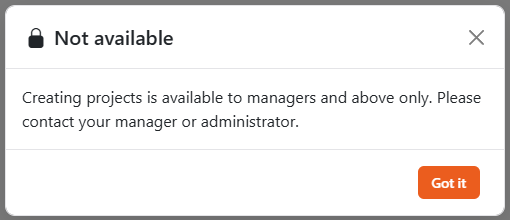
If a user without elevated permissions clicks New project, they see the Not available window suggesting they contact their manager or administrator.
Head
The head of the organization: everything a manager can do, plus sets up SLA — the reaction and resolution time of tasks. Sits between manager and administrator.
Administrator
Everything a manager can do, plus:
- Full access to all projects in the organization, including private ones.
- Writes and sees private comments on tasks.
- Can change the description of any task. Others can only change the description of tasks they created.
- Deletes leads and deals in CRM and deletes other people's tags.
Operator
A role for people who work with deals only, for example a call-center employee. The operator sees only the deals of the funnels they were given access to — a head grants access on the Funnels page. The system funnel is hidden from an operator unless it was granted.
- The menu has Sales (the Leads tab: the operator can view leads and change their sales status but cannot open a lead page) and Deals. Tasks, projects, todos, clients and other sections are closed: HubNext sends the operator back to Deals.
- In their funnel an operator creates deals, comments, attaches files, keeps checklists and can be the deal manager or the assignee of a checklist item.
- An operator sees the client or lead of a deal in the deal card but cannot open their page.
- Todos are not available to an operator: an item assigned to them is visible in the deal checklist and in the bell.
- An operator cannot move deals between funnels.
Reports (view only)
A special role for people who only need reports: only the Reports section and their own profile are available. Tasks, projects, todos and CRM are not.
Guest
An outside person invited to a guest project. Sees only this project: Dashboard, Kanban and its tasks, and works with them like a regular user. Everything else is closed. More in Guest projects.
Role and project access
The role works together with project access:
- The project owner has full access to it regardless of role.
- Users and managers get into a private project only if they're granted access: view, edit or manage.
- Anyone with manage permission in a project can grant access on its Access tab.
You can't open a task from a project you have no access to — not even via a direct link. Ask the project owner or an administrator to grant you access.
Permissions by feature
In addition to a role in a project, every organization has a list of permissions for individual features: deal funnels, duplicates, mailings and scenarios, email templates, agents, the knowledge base, organization settings and more. Each permission has a role from which it applies, such as "Manager and above" or "Head and above".
A superadmin sees and changes these settings in Administration → Users → Permissions: pick an organization and use the switches to turn a permission on or off for a role. A permission switched on applies to that role and every role above it. The reset button on a changed row restores the default. In the By person block you can pick an employee and see what is available to them.
Guests, the "reports only" role and operators never get these permissions; a superadmin always does.