Suppliers are the people and companies who perform services for you: people (guides, drivers, cooks, assistants and so on) and companies: carriers, hotels, DMCs, airlines, B2B systems, concierge and VIP/CIP services. Places (restaurants, attractions) go under the Locations type. The card holds contacts, where they work, languages, specialization and verification status. What you sell stays in Products.
Where to find it
Sidebar → Catalog → Suppliers (the section is visible wherever CRM is enabled, to regular employees and above).
How to add a supplier
- Click Add supplier (the button is for managers and above).
- Choose the Type (People, Locations, Carrier, Hotel, DMC, Airline, B2B system, Concierge & VIP/CIP or Other), the Folder if needed, enter the Full name (the Name for companies) and phone, then click Create.
- On the card that opens, fill in the rest and click Save. A new supplier gets the status On review.
Types and folders
Types are the tabs above the list: People, Locations, Carriers, Hotels, DMC, Airlines, B2B systems, Concierge & VIP/CIP, Other.
Inside any type you can create your own folders — the next menu level. For example, under Locations: "Restaurants", "Attractions"; under People: "Guides", "Drivers".
- Open a type tab — a folder row appears under it. Add folder creates one (managers and above), the pencil renames the selected folder, the trash can deletes it.
- A supplier goes into a folder when created, or later in the card (the Folder field, "Basic information" block).
- No folder holds the type's suppliers that are not sorted yet. When a folder is deleted its suppliers are not deleted, they move here.
- Folders belong to each organization separately.
Supplier card
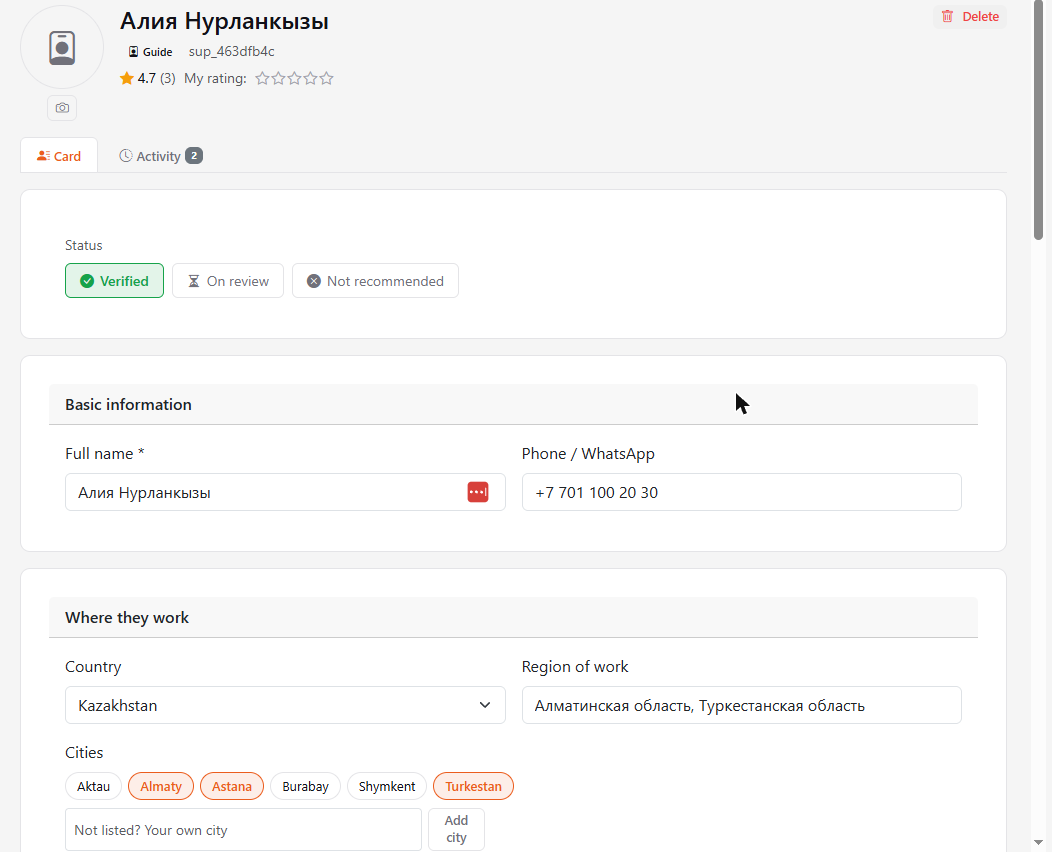
- Status — three buttons: Verified, On review, Not recommended. Every employee can see the status.
- Basic information — full name and phone / WhatsApp.
- Where they work — country, cities and region. Choose the country first: its cities appear as a list, tick the ones you need.
- Address (companies) — in the "Where they work" block.
- Company contacts (companies) — Website (a link appears next to the name in the header), Contact person, their phone and email.
- Languages and proficiency — add a language with Add language and pick a level: basic, fluent or native.
- Specialization (guides only) — tick what fits: city tours, mountains, VIP, history, culture and others.
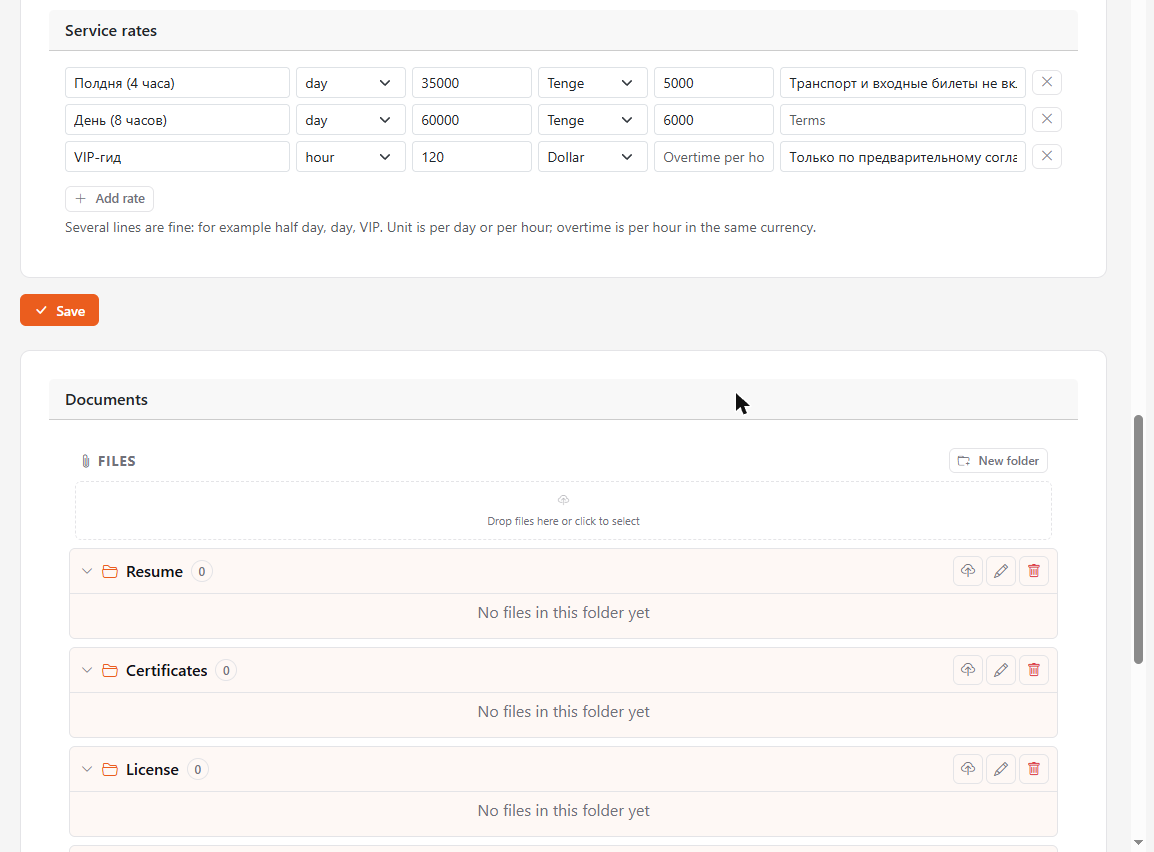
- Service rates — several rate lines: a name (for example half day, day, VIP), a unit (per day or per hour), an amount, a currency, overtime per hour and terms. Add lines with Add rate.
- Photo — the circle left of the name: the camera button uploads a photo (JPG, PNG, WebP or GIF up to 5 MB), the cross removes it.
- Documents — the supplier's files in folders (created automatically): for people Resume, Certificates, License, Contract; for companies Certificates, License, Contract, Price lists. Managers and above upload and delete, everyone can view.
- Comments — below the card, like for clients and deals; mention a colleague with @.
If a city or specialization you need is missing, a manager can add their own right on the card: type the name and click the button next to it. Your own values have a dashed border and a person icon, and only your organization sees them.
Linking to clients and deals
A supplier can be linked to a client and to a deal (for example a tour); the links are independent, a link to a deal does not create a link to the client.
- Open a client or deal card, the Suppliers tab.
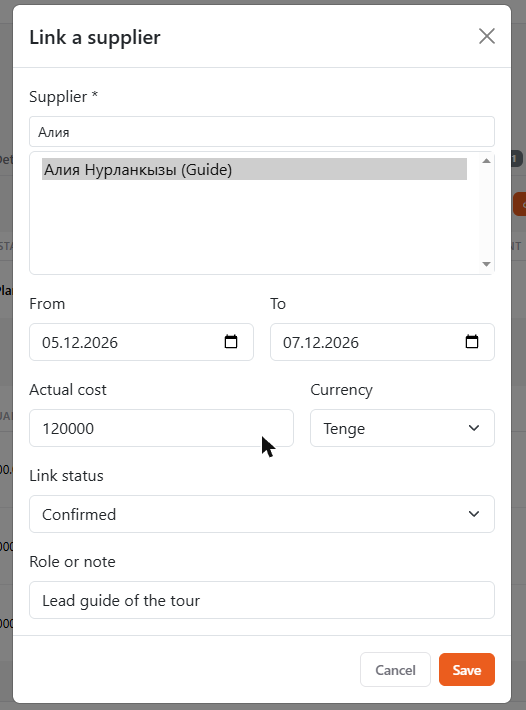
- Click Link a supplier, find it by name (Cyrillic or Latin), set the service dates, the actual cost with currency, the link status (planned, confirmed, done, cancelled) and a role or note.
- Edit a link with the pencil button; it can be removed by whoever created it and by managers and above.
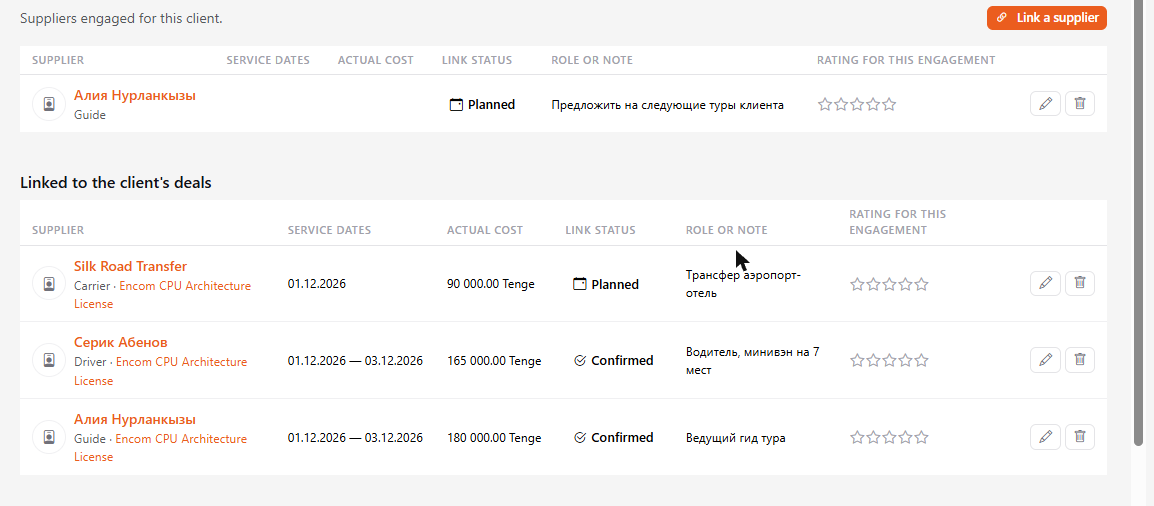
On a client's tab, suppliers linked to the client's deals are listed separately below (view only, edit them in the deal).
Ratings
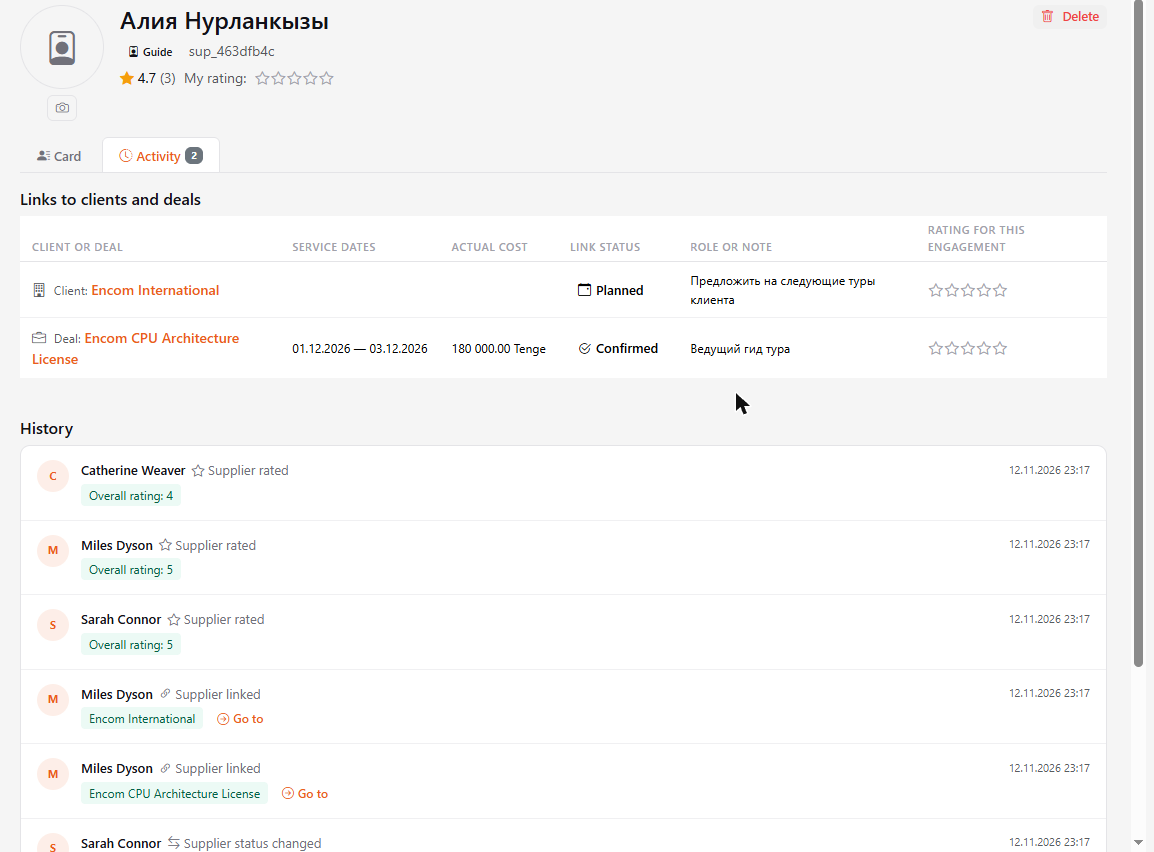
- Overall rating — the "My rating" stars in the supplier card header: every employee has their own, it can be changed, and clicking the same star again clears it.
- Rating for an engagement — the stars in a link row (on the client, the deal and the supplier's Activity tab). Any employee can rate.
- The rating in the header and in the list is the average of all ratings, with their count in brackets.
Activity tab
On the supplier card: all its links (which client or deal it was engaged for, dates, cost, status, rating) and the change history — creation, edits, status changes, photo, links, ratings.
Supplier list
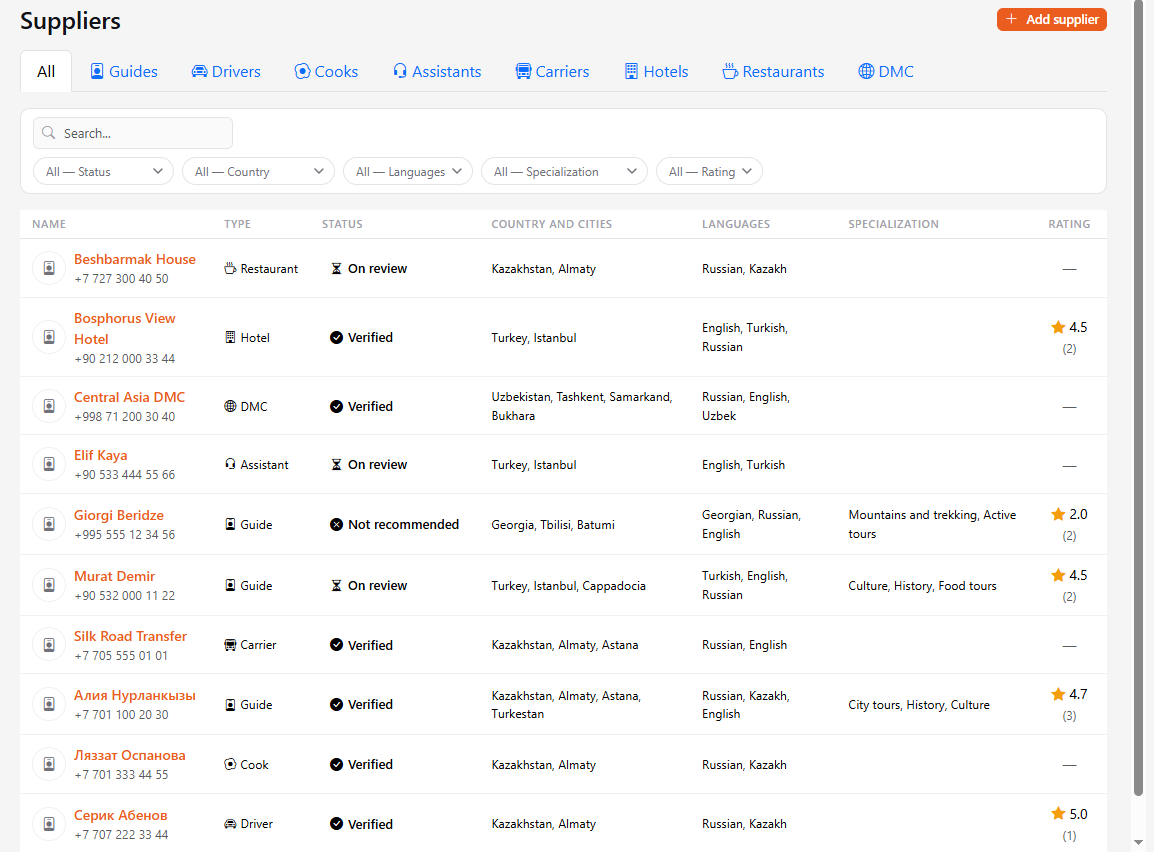
At the top there are tabs by type (All, Guides, Drivers and so on), below them a search by name (works in Cyrillic and Latin) and filters: status, country, city, language, specialization and rating. Filters can be combined. The country filter matches both the Country field and the country name in Region of work. Next to the search there is a view switch: Table (with a Region of work column) or Cards; your choice is remembered.
Who can do what
- Any employee of the organization can see the list and cards. The Guest, Reports-only and Operator roles do not see the section.
- Creating, editing, changing the status, deleting and adding own cities and specializations is for managers and above.
- Linking to clients and deals, editing links, rating and commenting is for any employee.