CRM tags help you group clients, leads and deals: "Key client", "Retail", "Repeat sale". One tag can be put on a client, a lead and a deal alike — and then you can see all of them on one page.
CRM tags have their own cloud, separate from task tags: a client card doesn't offer task tags, and a task doesn't offer CRM tags. For task tags, see Tags and releases.
Where to find
Sidebar → Marketing → Marketing Tags. The arrow next to Marketing expands the submenu.

Each tag card shows how many clients, leads and deals are linked to it. Click a number to open the tag with that filter already applied. The Search tags field filters the list by name.
How to tag something
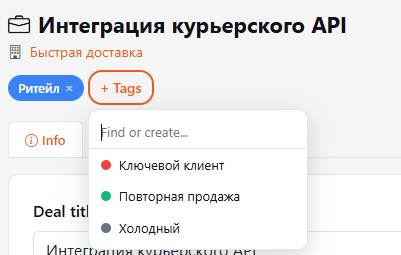
- Open a client, lead or deal card.
- Click + Tags under the title.
- Pick a tag from the list or start typing a name in the Find or create field.
- If the tag doesn't exist yet, click Create or press Enter — the tag is created and added to the card right away.
To remove a tag, click the cross on it.
How to create a tag in advance
- On the Marketing Tags page, click New tag.
- Enter a Name and pick a Color.
- Click Create.
Tag page
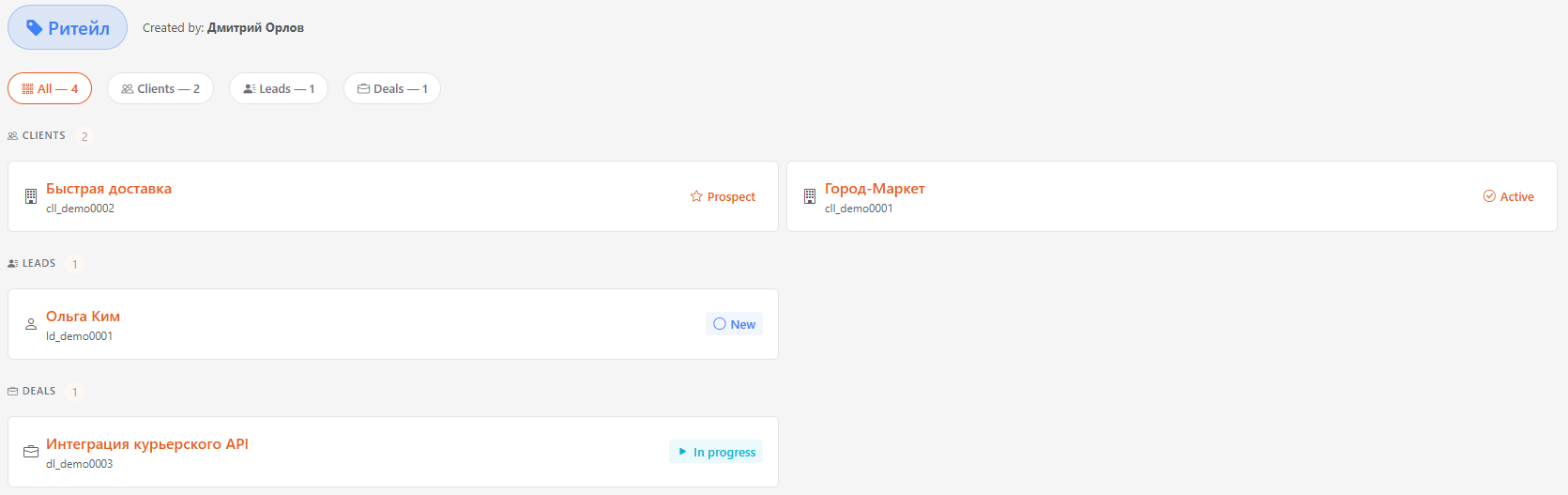
Click a tag in the list. At the top is who created it; below are the All, Clients, Leads, Deals filters with counts and the cards themselves with their current status. A name opens the client, lead or deal card.
Filter by tag
Tags are shown on the deals board and in the clients and leads lists (table, cards, kanban): on the card or in the row under the name. To keep only records with a given tag, pick it in the All — Tags list next to the other filters. On the deals board the filter applies to the current funnel, and the columns and counters are recalculated. Pick All to clear it. List search also finds records by tag name.
How to delete a tag
Click the trash icon on the tag card in the list and confirm. The tag is removed from all clients, leads and deals. A tag can be deleted by the person who created it or by an administrator.